Services
localtunnel
myrobotlab
localtunnel
myrobotlab
Not applicable.
In most cases, you don't really want a localhosted site to be accessible from outside your machine, but there are certain circumstances where you may need to, if you're a multiple person team, and you're wanting to collaborate on MyRobotLab without sharing the same machine.
Enter Local Tunnel, you can find a copy of the download here: https://github.com/localtunnel/localtunnel
PythonProxy
Ubuntu computer (only Linux is supported at this time)
This is a tutorial on how to write MyRobotLab services in Native Python.
For now, limited Java experience is still required to create a proxy service, but this may change in the future.
Basic knowledge of Linux and virtualenv is required, Google those if needed
Knowledge of the Python programming language
Firstly, install MRL as a dev environment, as explained in the Getting Started tutorial.
A short video showing how to upload MRLComm.ino to the Arduino using the Arduino IDE.
It is also possible to upload it using the WebGui, but I prefer to do it this way, since it's easier to understand what's happening.
This tutorial is for lubuntu but must work with other banana pi os ...
If your Banana Pi is just out of the box, you will need to install Lubuntu os on your SDcard. Follow this tutorial to do it : http://www.lemaker.org/resources/9-39/banana_pi_quick_start_guide.html
Once it's done, use the password bananapi to log in the user bananapi .
Let's go !
run the program start menu -> system tools -> synaptic package
1. Make a directory like c:\mrl (warning no spaces in the name)
2. download the latest myrobotlab.jar from latest build and put it in the new directory so it looks like this
.png)
3. Start a command shell, type
cd c:\mrl
then type
java -jar myrobotlab.jar
.png)
It takes a while the first time on a computer - its extracting pieces of itself. But eventually a gui should come up. It should look like this. You want to flip over to the "runtime" tab and press the menu System->Install All
.png)
After the services install, you should not need to download the services again. Even if you make a new MRL directory somewhere else to try a different version - the services won't need to be downloaded, but will be copied from the local repo .. this makes it very fast.
This is a pre-tutorial post - to get parts together and organize the "real" Tutorial
Step 1 - Load the RasPi with the latest Wheezy Rasparian image.
Ok, so this is still possible with buld 1943
I pulled this of my Pi with the video streamer...
.png)
PT: Este breve tutorial auxilia na iniciação ao MyRobotLab dos novos usuários que tem preferência pelo idioma português.
EN: This short tutorial helps on the beginning of MyRobotLab for the newbies who prefer the portuguese language... and for the guys who want to learn portuguese. :) So, it will be all in portuguese.
Após este tutorial, você estará apto a:
This tutorial is based on an older version of My Robot Lab (1695) and not the current bleeding edge. You can have more than one version MRL installed/unzipped on your computer.
 Inmoov
1 X Arduino board
1 X servo MG946R or HK15298 or MG995
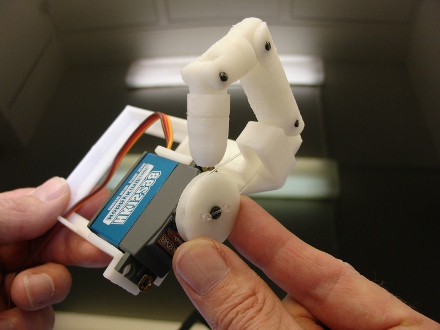
.jpg)


Pan Tilt Kit
Face tracking using opencv + facedetect filter with my pan/tilt kit...
Facedetect filter is heavy, and webcam video flow delay from servos response...this leads to overshooting
GROG..i need a lighter facedetect filter.....video stream is slow when i apply pirdown and face detect :(
Here is the video...
CHECK IT OUT !
[[home/Alessandruino/Tracking.faceDetection.py]]
This tutorial shows how to take a photo (webcam) and send it by email using VOICE CONTROL...
WARN : There are 3 version of the python script
1) simple one - only take a photo using voice
2) full version - it requires a gmail address-take a photo + send it by email (SEE THE TUTORIAL)
3)full version ITA - for CIX, italian users, or who wants to listen the computer talking in italian :D
Good vision :D

A tutorial that explain how to use tracking service in MRL...
Python Minimal script
[[service/Tracking.py]]
In this PICTURE I USED PIN 3 for X and PIN 11 for Y -> USE 13 FOR X AND 12 FOR Y INSTEAD !!!!!
A tutorial that explain how to install MRL and how to use Arduino and Servo 's services in order to move a servo...
Lucas and Kanade developed an algorithm which allows tracking of object through a video stream. The algorithm requires less resources and is usually faster in response than many other forms of tracking.
Pros :
Cons:


No additional hardware is needed for this tutorial
The MRLClient is a client adapter which allows other Java programs to interoperate with MyRobotLab. Although the myrobotlab.jar can be included and used in a Java program directly, it may sometimes be desirable to communicate over the network with an adapter.
The MRLClient jar is a small binary which uses the network to send and recieve messages to a running MyRobotLab instance. Other network adapters could be created for languages besides Java, but currently only Java is supported.
Video Tutorial #1 (Overview)