
The OpenCV Service is a library of vision functions.
Some of the functions are
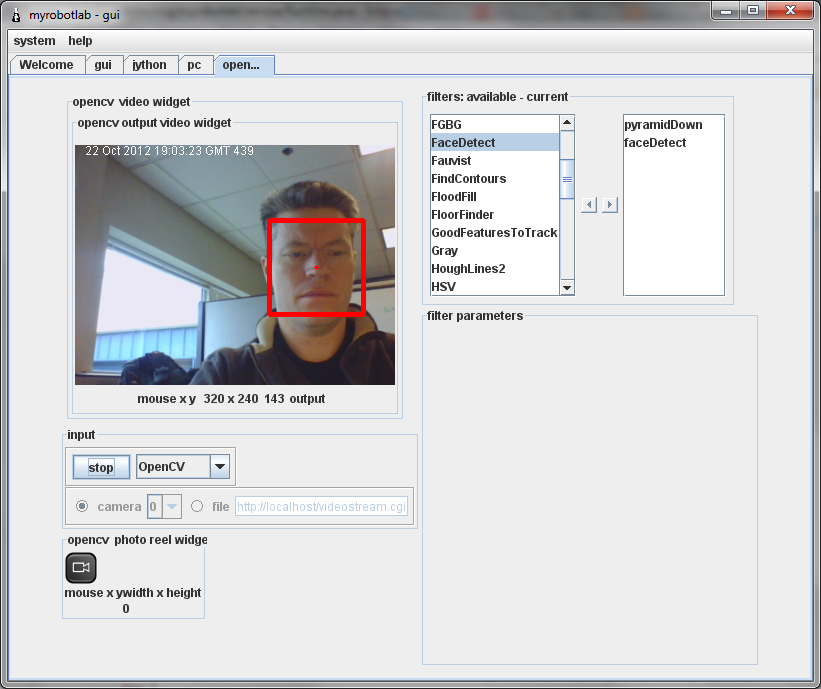
- Face detection
- Fast Lucas Kanade optical tracking
- Background forground separation
- Motion detection
- Color segmentation
The OpenCV Service has several dependencies, so it will need to be installed before it is used. You may install it on the Runtime panel. Highlight the OpenCV service right-click -> install. A restart is necessary, after installing new services.
Raspberry PI:
If you want to use OpenCV on a Raspberry PI there is an extra depencency that needs to be installed manually. Open a Terminal window and install with this command:
sudo apt-get install libunicap2
That will make it possible to use USB cameras, and the Kinect camera.
To use a Raspi camera module three more steps are necessary:
1. Open 'Raspberry PI Configuration' => Interfaces => Mark the Camera: checkbox Enabled.
2 . Edit the file /etc/module. Add a line:
bmc2835-v4l2
3 .Reboot.
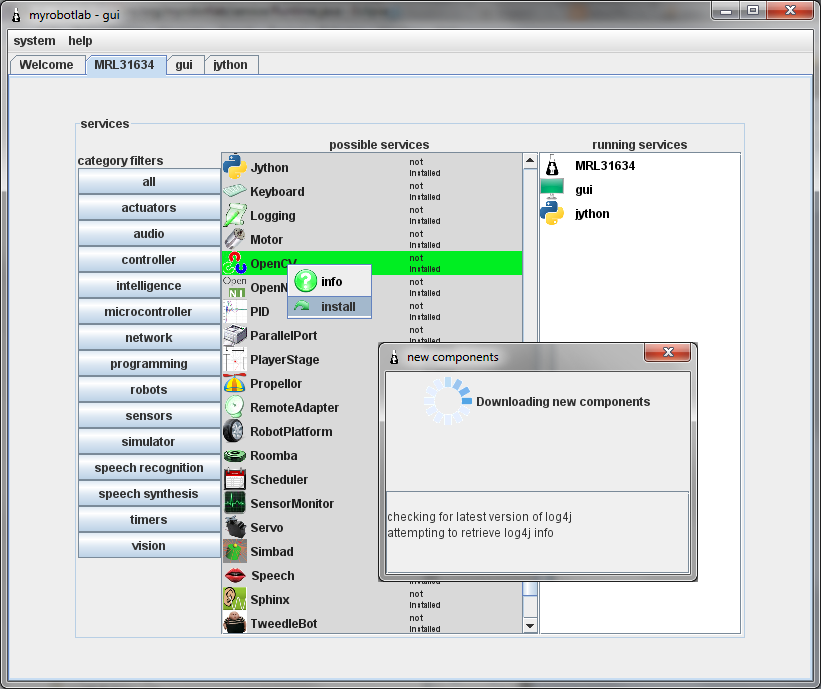
The same can be achieved programmatically with the following line of Python
runtime.upgrade("org.myrobotlab.service.OpenCV")
Next you can create start a new OpenCV service by right clicking -> start
.png)
runtime.createAndStart("opencv", "OpenCV")
Below shows the steps to add the PyramidDown filter:
Step 2 - is press the arrow button to move it into the pipeline
Step 3 - is to give it a unique name
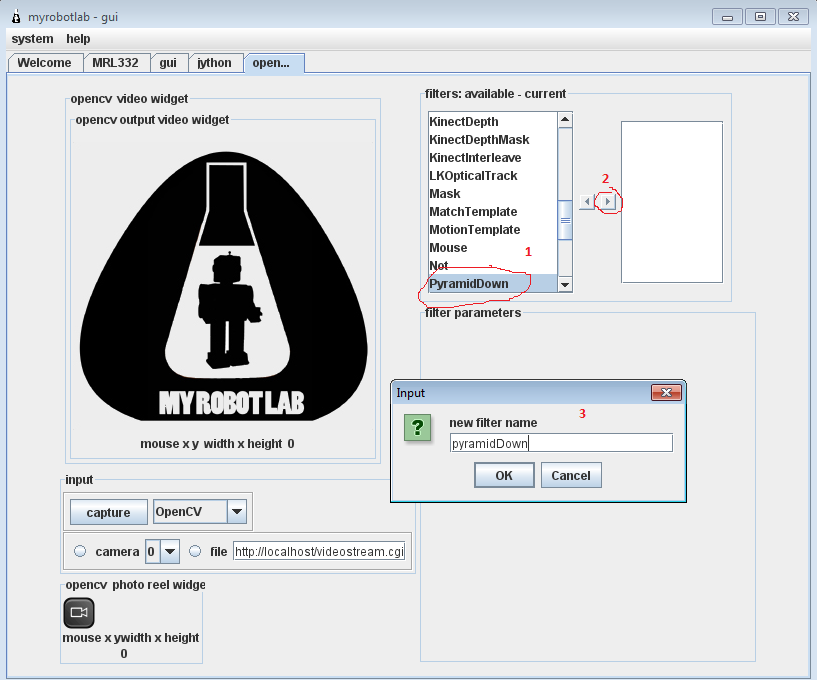
opencv.addFilter("nameOfMyFilter","PyramidDown")
opencv.setFilterCFG("canny","aperture", 1)
.png)
Just highlight and press the left arrow button to remove a filter from the pipeline
.png)
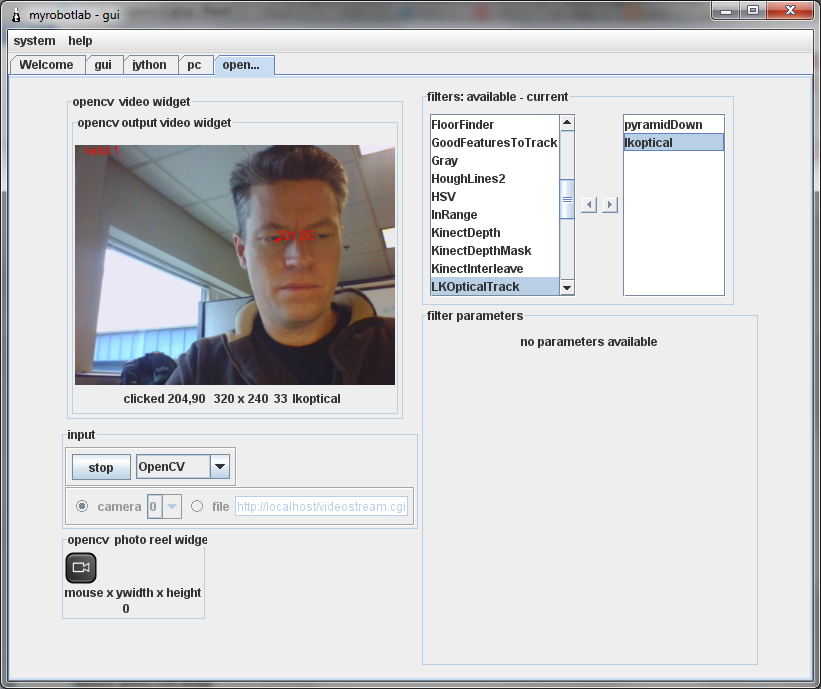
- cvCalcOpticalFlowPyrLK
- Need Youtube demo of tracking good space invader corners
- Wikipedia
- Emgu
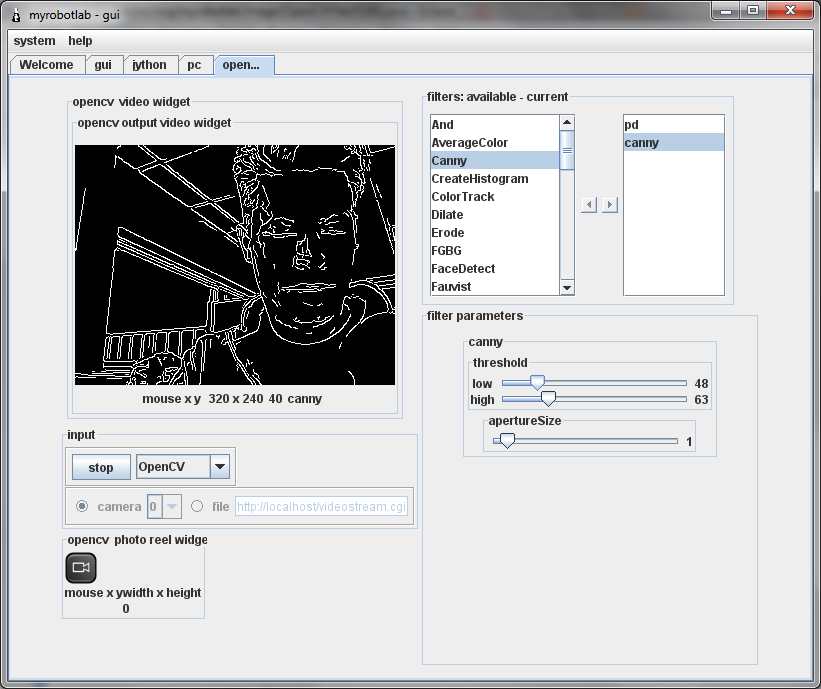
- apertureSize - aperture parameter for the Sobel operator
- lowThreshold - lower threshold on minimal amount of pixels required for edge linking
- highThreshold - upper threshold on max amount of pixels required for edge linking
- history Length of the history.
- varThreshold Threshold on the squared Mahalanobis distance to decide whether it is well described by the background model (see Cthr??). This parameter does not affect the background update. A typical value could be 4 sigma, that is, varThreshold=4*4=16; (see Tb??).
- bShadowDetection Parameter defining whether shadow detection should be enabled (true or false).
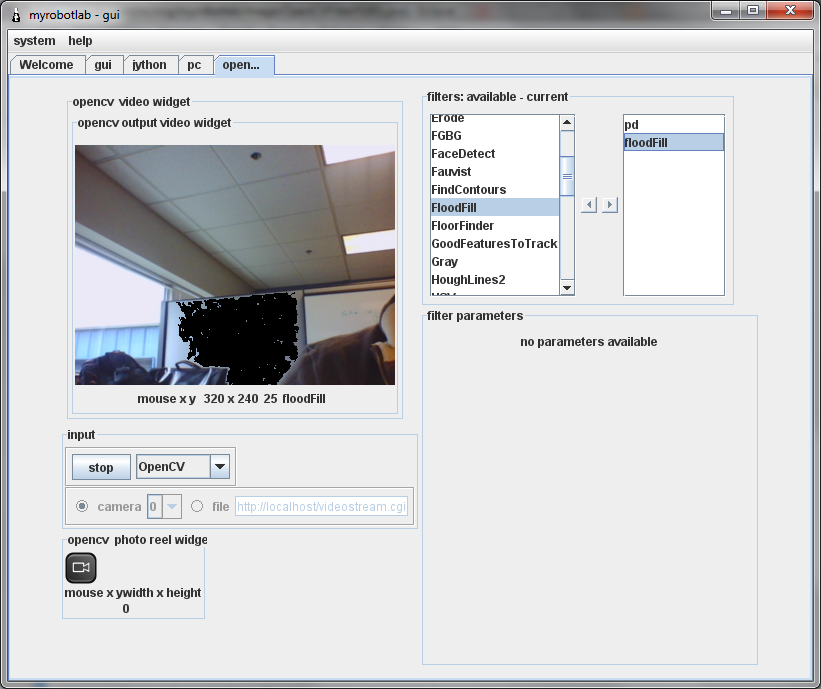
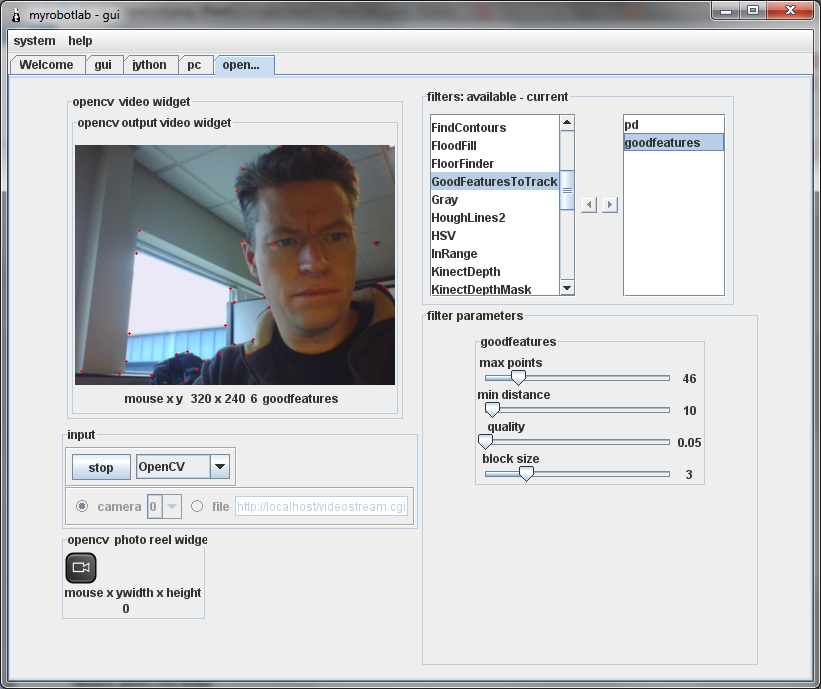
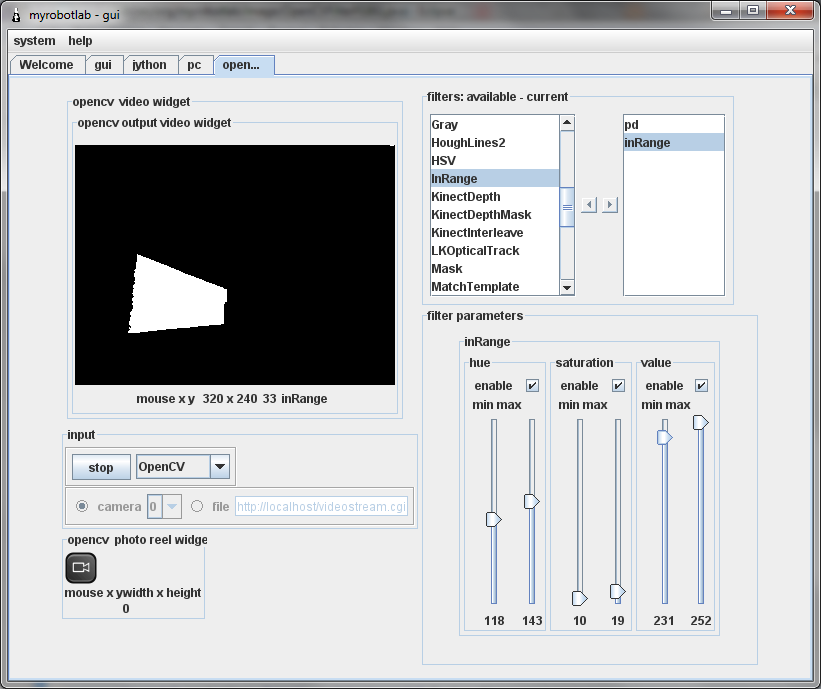
- http://en.wikipedia.org/wiki/OpenCV
- http://docs.opencv.org/
- Large Scale Visual Recognition Challenge
- Wolfram Image Identify
Not all cameras work with OpenCV - here is a list of supported cameras from willowgarage
OpenCV on Raspberry PI
If you want to use OpenCV on Raspberry PI 2 with the PI camera, then using the SDK from Oracle makes a huge difference. I forgot when I installed Jessie, and I got FPS of 1 or less. After installing Oracle I got 16 fps when using PyramidDown. Instructions to install Oracle SDK can be found here: http://www.rpiblog.com/2014/03/installing-oracle-jdk-8-on-raspberry-pi…
Hi ! Playing with open cv (
Hi !
Can i ask how you got MRL to
Can i ask how you got MRL to work with the raspi-camera module? I have been trying this for over a year now and can't get it to work. The camera module just won't start. even though it works fine if i call it with raspivid.
i have the v4l2 drivers installed and in /dev/ i found video0. so that is working fine right?
any help is appreciated ; )
OpenCV on Raspberry PI
Hi
You need to download a lot of other dependencies to make it work. Not sure about th exact list, but I got it working after installing the dependencies from this blog entry.
http://myrobotlab.org/content/opencv-300-and-javacv11-built-and-worky-r…
/Mats
RasPi camera
Hi
To see what steps were really necessary I downloaded and installed a fresh Raspbian image.
First install MRL. Then follow the 'Raspberry PI' steps here:
http://myrobotlab.org/service/OpenCV
/Mats